
.svg)
...


Oops! Something went wrong while submitting the form.


.webp)
.svg)
EquityList Team
Jun 3, 2026
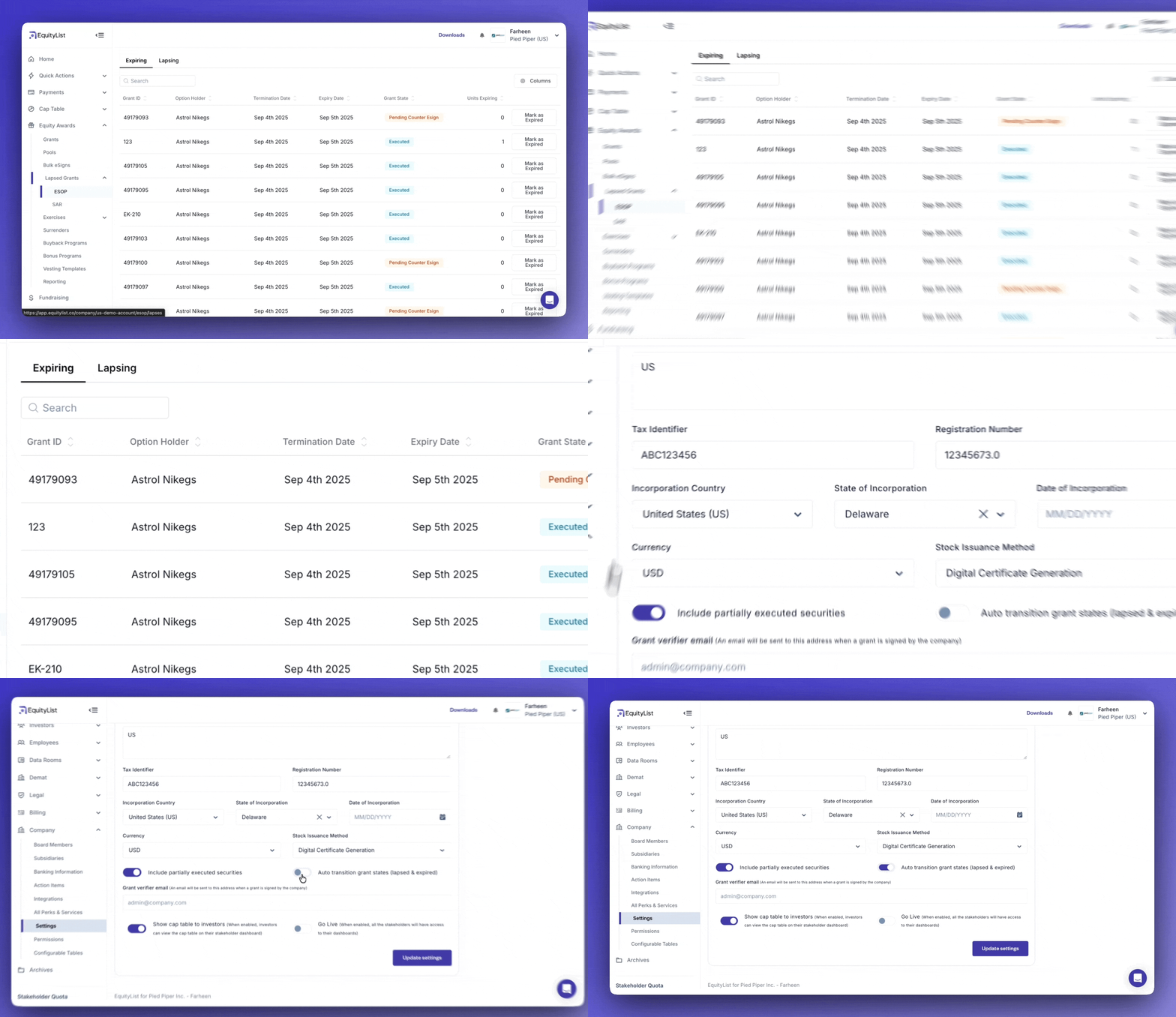
Equity Awards > Lapsed Grants > Expiring/Lapsing
The Lapsed Grants section now has two separate tabs: Expiring (grants whose scheme-defined validity period has ended) and Lapsing (grants from terminated employees whose post-termination exercise period has elapsed).
Previously, Expired and Lapsed were grouped into a single view. Separating them makes it easier to understand why a grant is no longer exercisable and take the appropriate action.
Companies can choose to automatically transition grants when the applicable criteria are met, or disable auto-transition in Settings and review each status change manually.

.svg)
EquityList Team
Feb 4, 2026
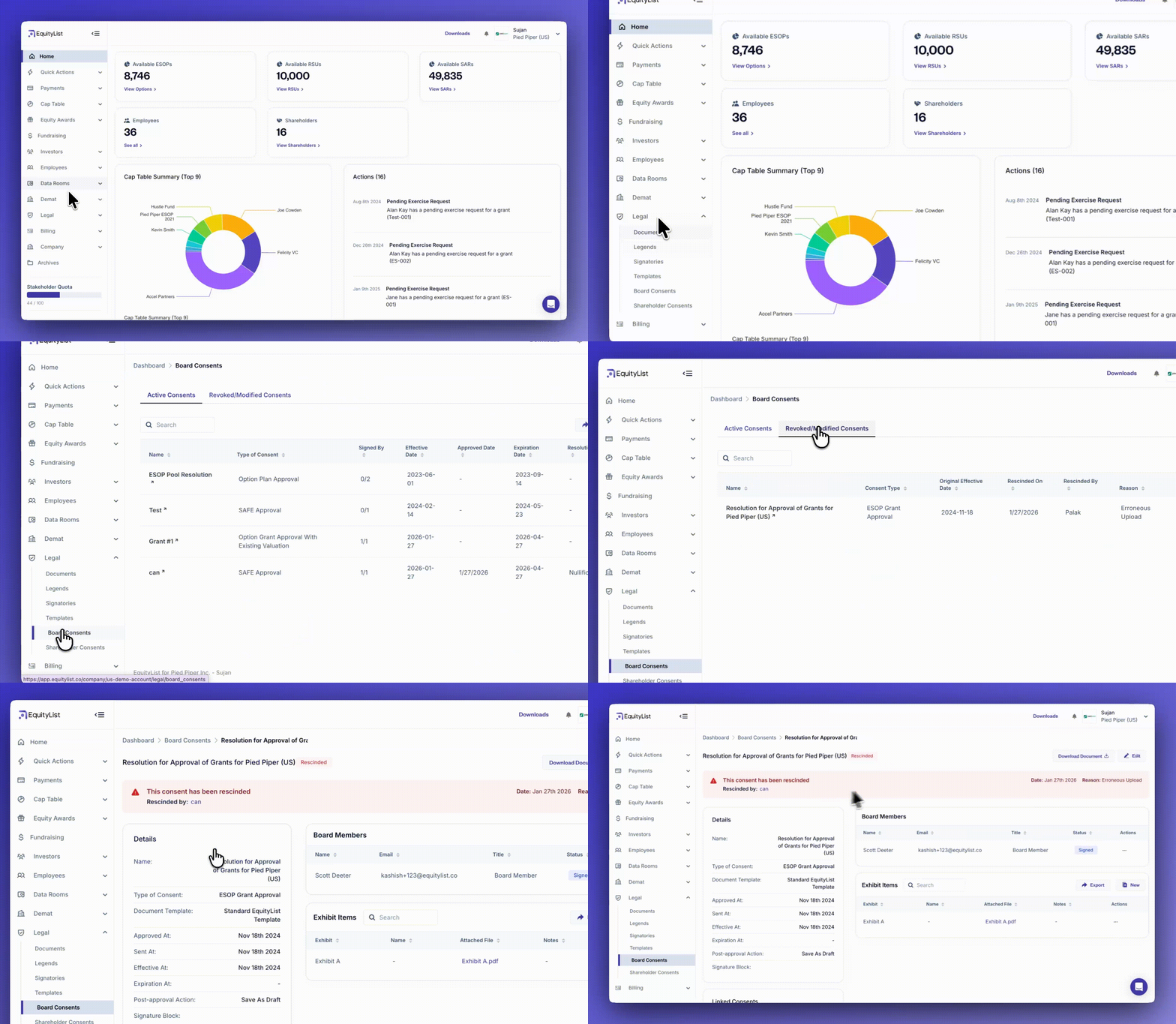
Under Legal > Board Consents or Shareholder Consents, you can now rescind, nullify, or amend signed consents without losing your compliance records.
If a consent was uploaded with wrong information, had a procedural defect, or was revoked by the board, you can formally record that. The platform asks for a reason, optional supporting documents, and a link to the replacement resolution — either one you create in EquityList or upload from an external source.
Rescinded consents move to a separate tab. Your active list stays clean, and you keep the full audit history. All linked consents show their relationships, so auditors and legal teams can trace exactly what changed, when, and why.
EquityList Team
Feb 4, 2026
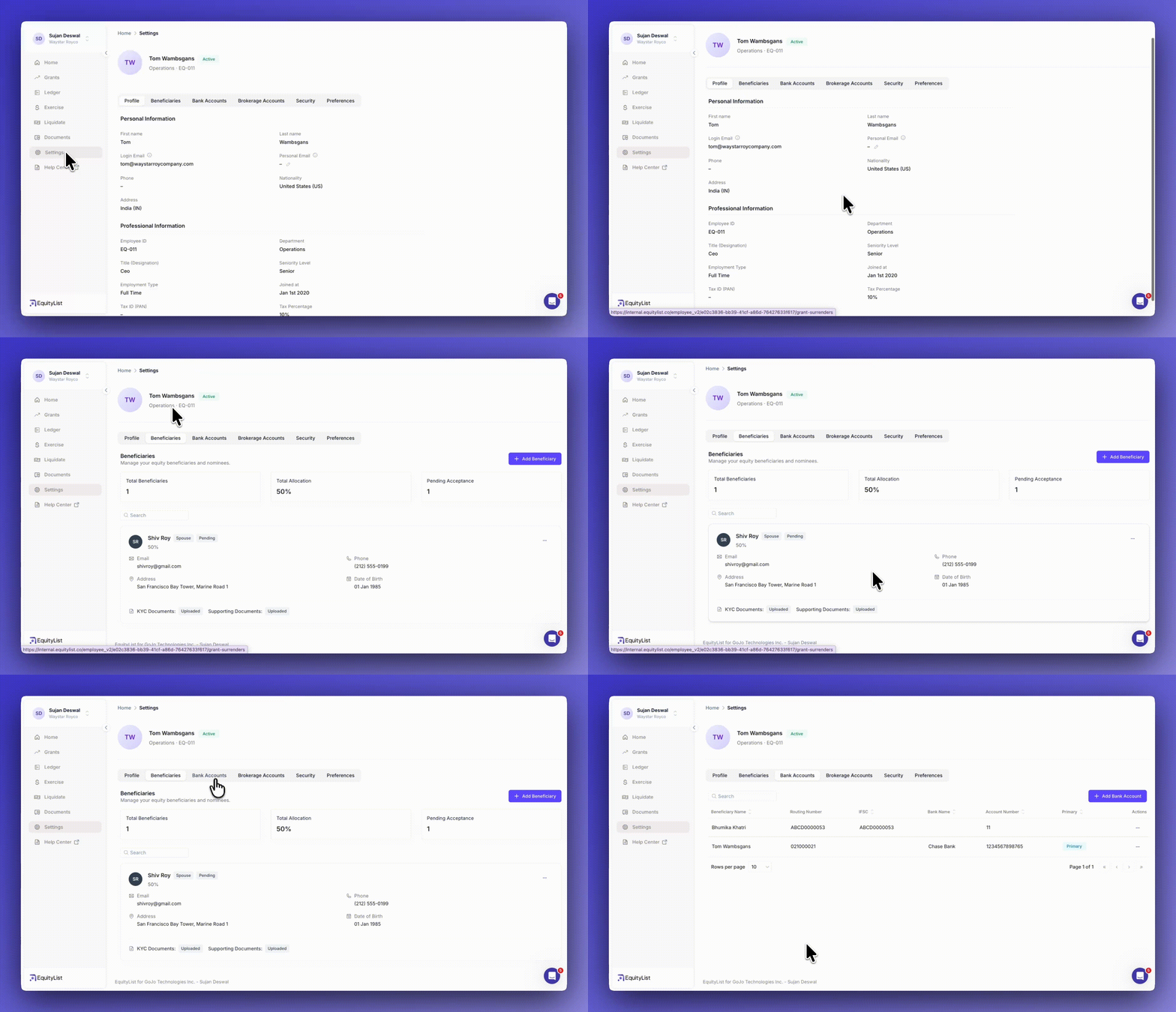
In the EquityList stakeholder-facing dashboard, under Settings > 'Beneficiaries' tab, stakeholders can now set up verified beneficiaries/nominees for their equity holdings.
When an employee adds a beneficiary/nominee, they can add KYC documents (optional), send a notification, and track formal acceptance. This creates a clear audit trail for when transmission events happen.
Stakeholders can add up to 10 beneficiaries/nominees and split allocations by percentage. If they name a minor, the platform asks for legal guardian details and runs a separate acceptance flow.
Stakeholders can also upload wills, letters of intent, or personal declarations. These stay encrypted and hidden from the company — we only unlock them during verified transmission events with proper legal documentation.
Both stakeholders and admins can see the full picture at a glance: total beneficiaries, percentage splits, and which acceptances are still pending.
EquityList Team
Jan 13, 2026
Your stakeholders' equity now looks and feels like the real investment they are.
We've completely redesigned the stakeholder dashboard with clearer numbers, better visibility, and an experience that treats equity the way any serious financial holding should be treated.
What’s new(er)? 👇️
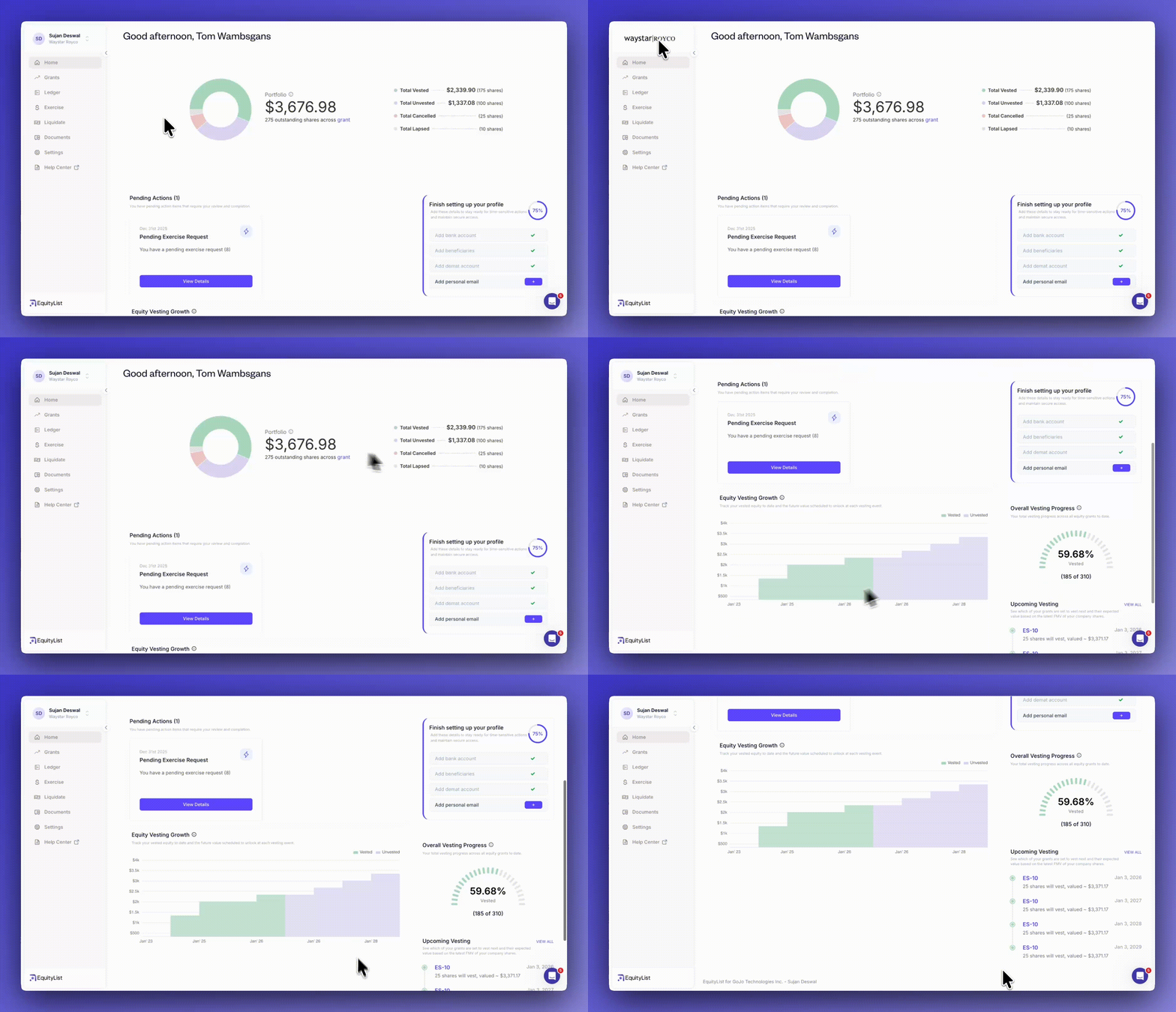
A portfolio-style dashboard showing total vested value, equity growth over time, and pending actions.
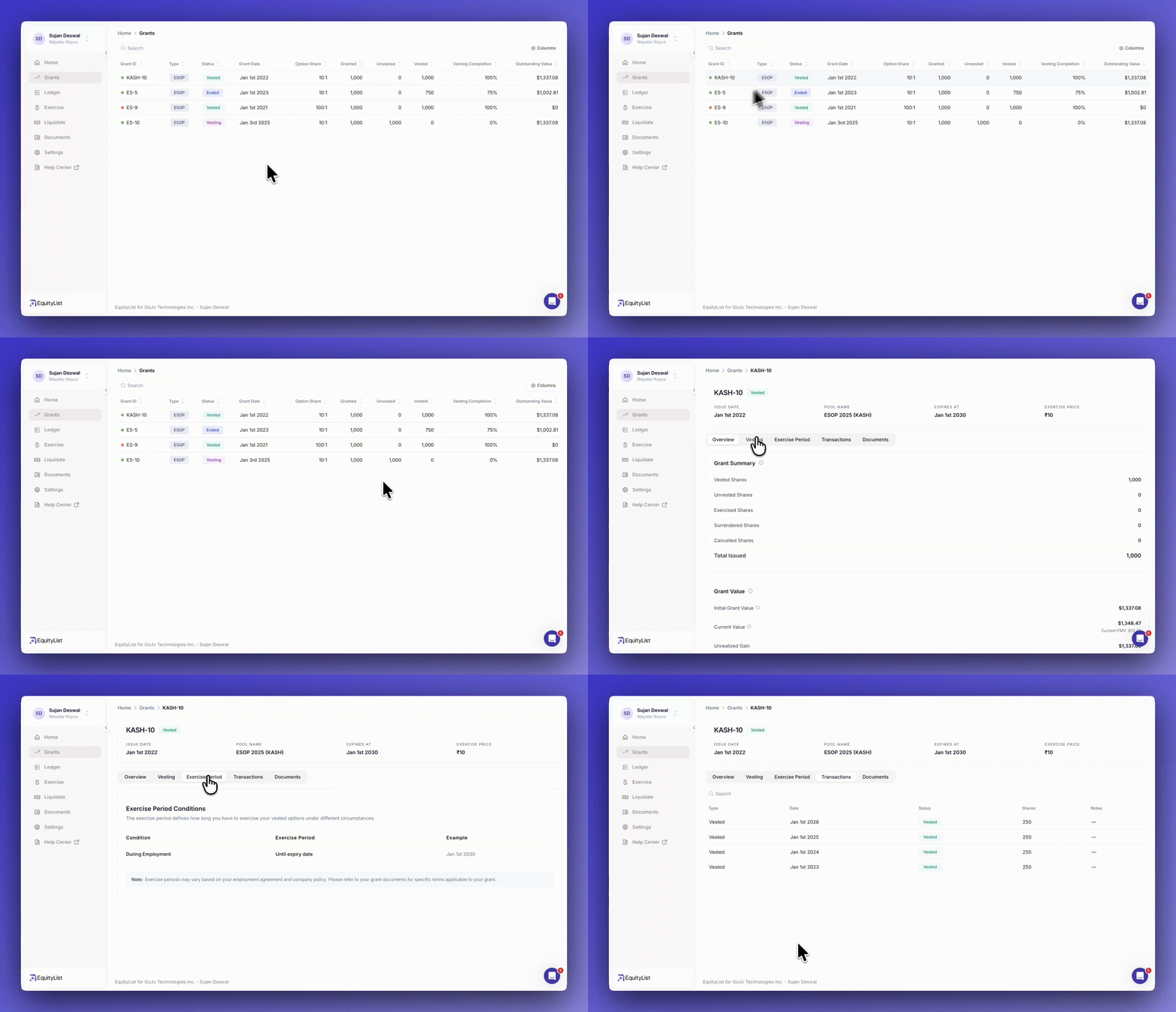
Stakeholders can view their grants at a glance with status, vesting progress, and current value.
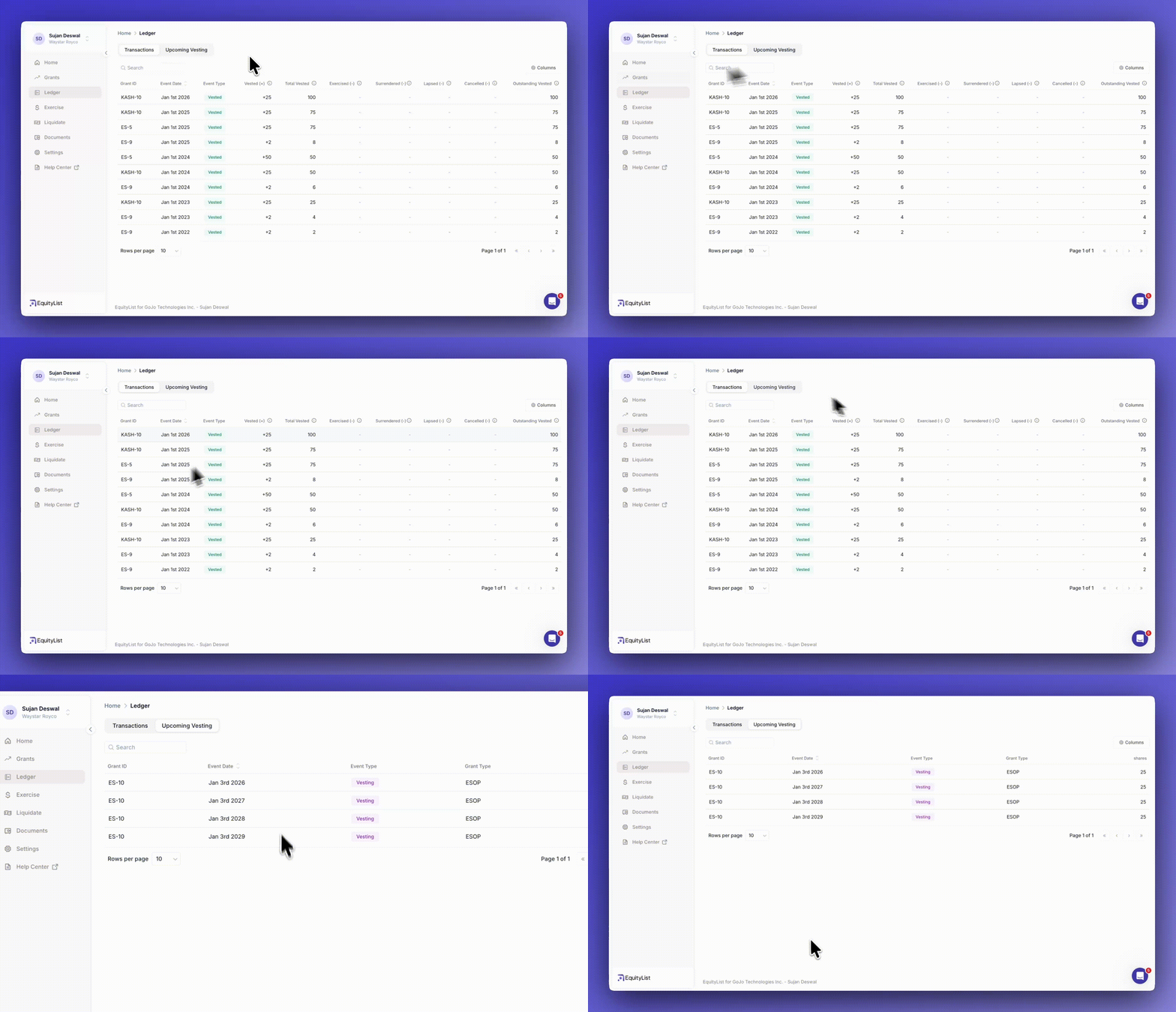
A complete transaction history so stakeholders can see exactly how their equity changed over time.
Stakeholders can add beneficiaries, allocate them equity by percentage, and store proof-of-identity verification.
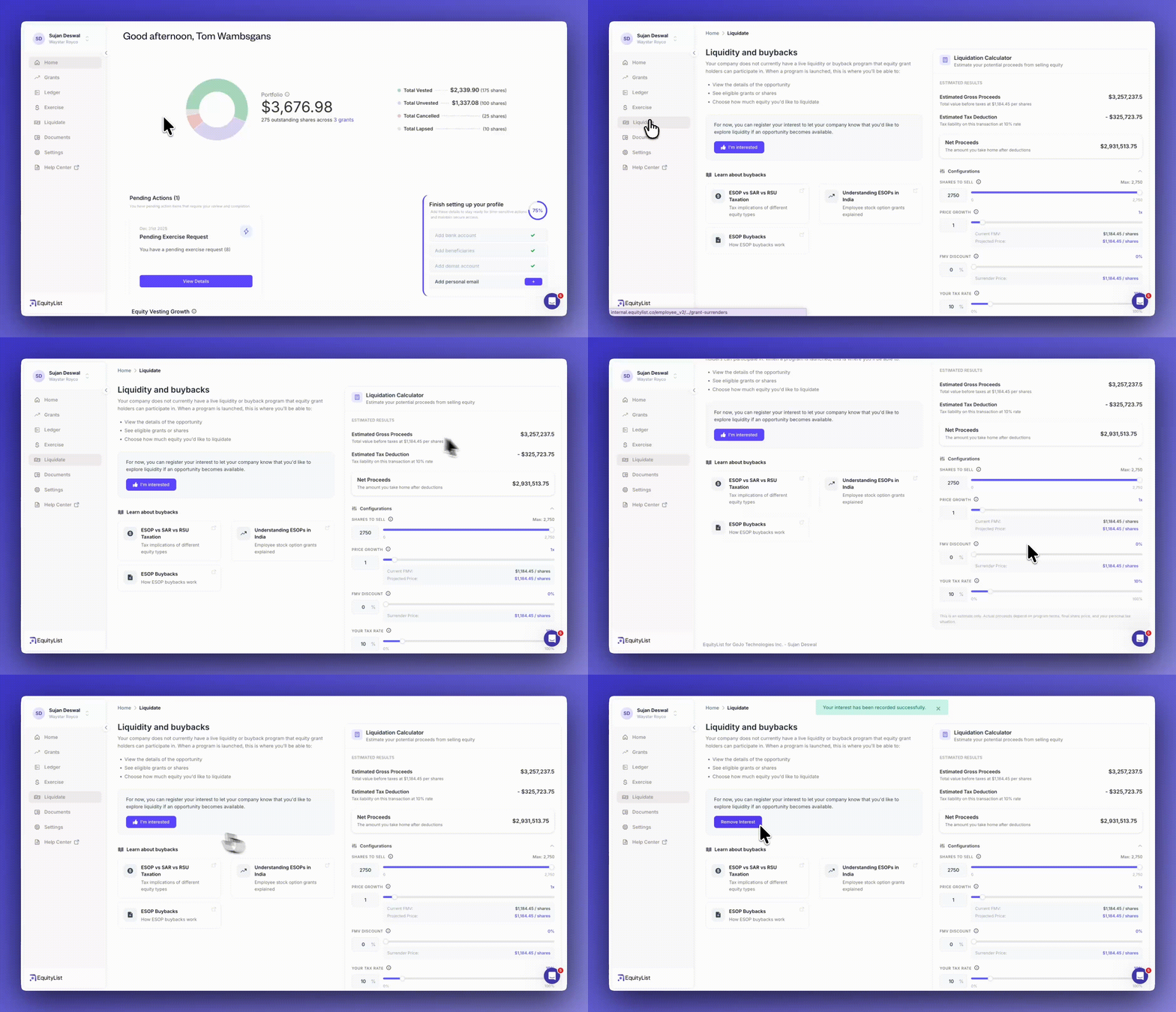
Stakeholders can register interest in future liquidity events (like buybacks) and estimate their potential proceeds with the built-in simulator.
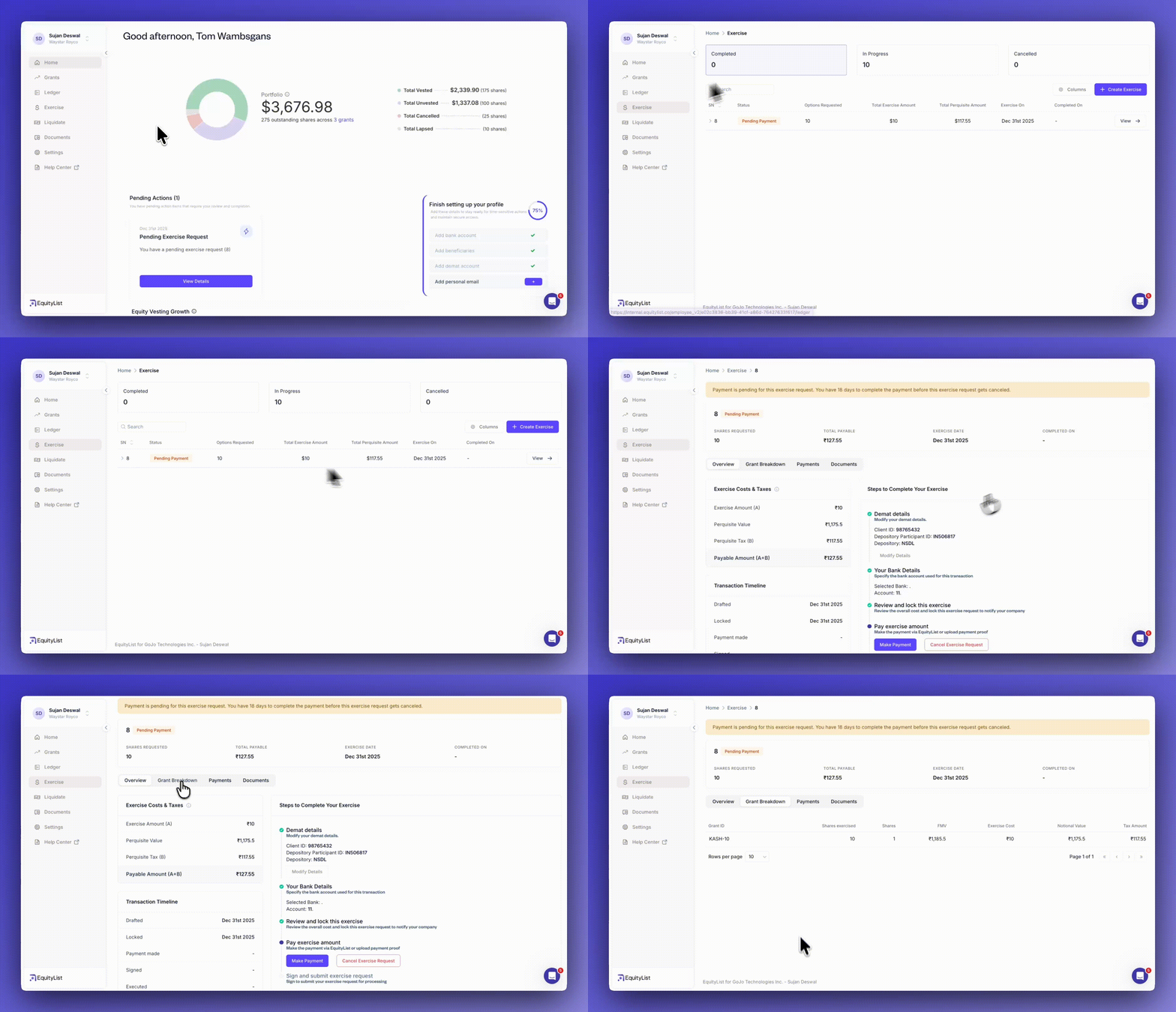
A clearer way to create and track exercise requests with status, amounts, and perquisite breakdowns.
EquityList Team
Filters added to shareholders view
Filters added to share certificates